
Your iPhone's home screen shouldn't just be a dumping ground for every app you have ever downloaded. With a few simple tweaks, you can turn it into a personalized dashboard that actually helps you get things done.
It’s not like the early days of iPhones where your Home Screen was just grids of app icons with a few folders thrown in. Now you have almost complete control of what is on your Home Screen, with widgets for glanceable information, customizable colors, and customizable transparency.
Here are three quick ways to customize your setup:
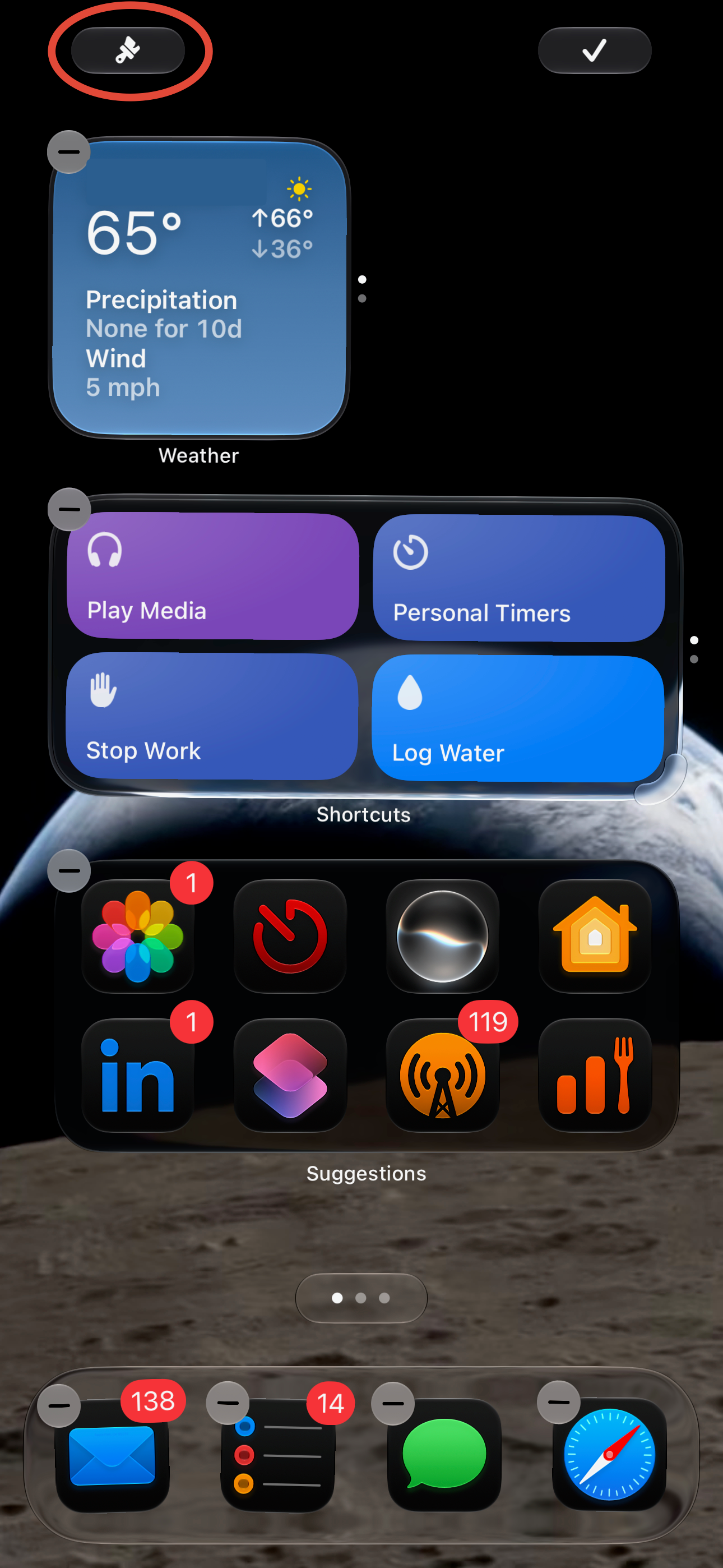
Add Widgets: Press and hold anywhere on your home screen until the apps start to jiggle. Tap the + icon in the top left corner to browse widgets. These give you a quick glance at information—like the weather, your calendar, or your daily reminders—without needing to open the app.
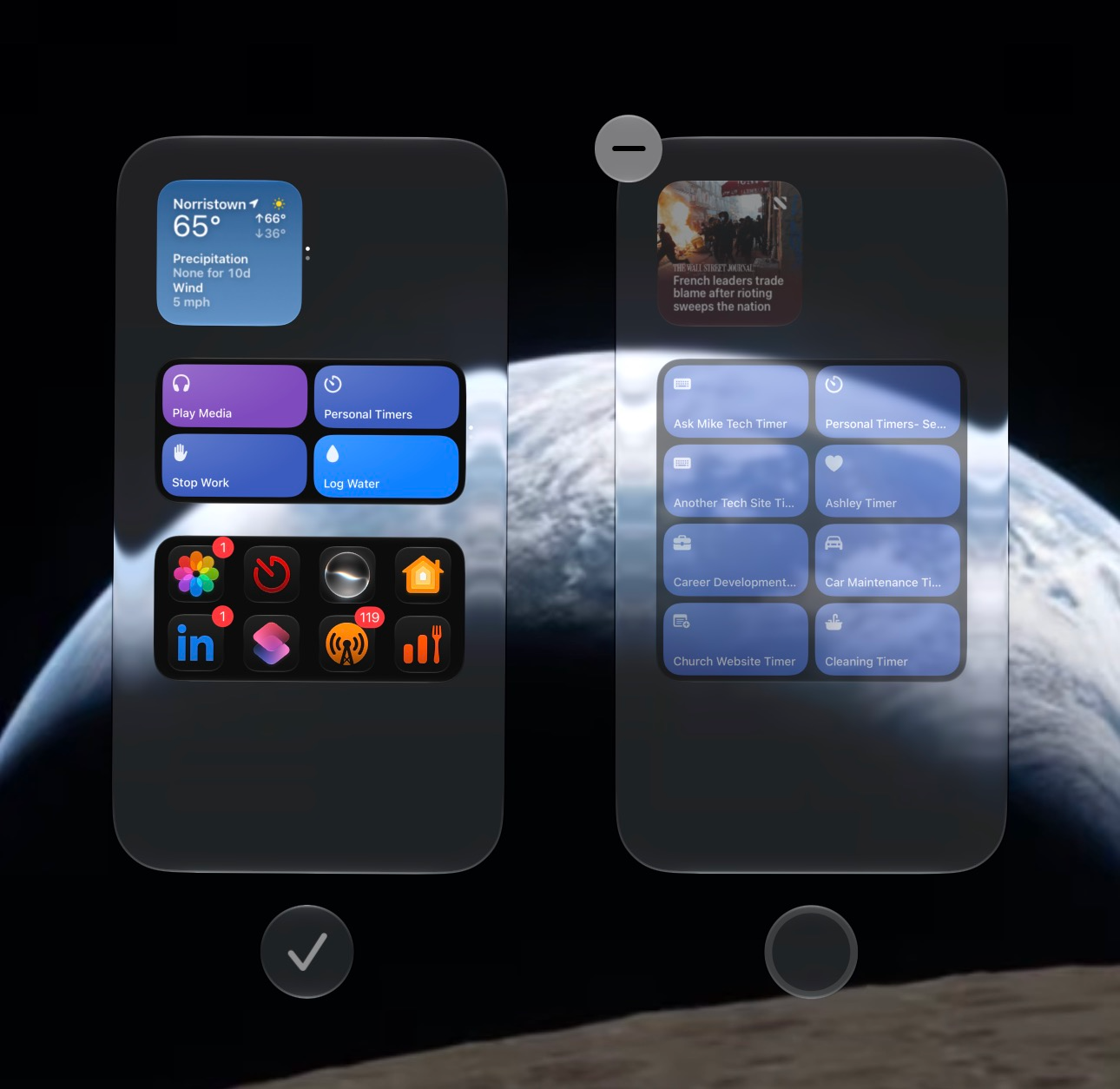
Hide Unused Pages: If you have pages of apps you rarely use, you can hide them entirely. While the apps are jiggling, tap the dots at the bottom of your screen, then uncheck the pages you want to hide. (You can always find those apps later in the App Library by swiping all the way to the right).
Create Smart Stacks: You can stack widgets of the same size on top of each other. Just drag one widget over another, and your phone will automatically cycle through them based on the time of day or what you usually do next.
Take five minutes today to clear out the clutter and put your most important tools front and center!
Stay tuned: We are just scratching the surface here. In the coming weeks, we will dive into more advanced ways to customize your home screen, including how to use Focus Modes to automatically change your layout based on what you are doing. Subscribe to Ask Mike Tech to stay up to date on how to make the most of your most viewed screen.